Import bookmarks
Import an existing bookmarks library by uploading the HTML file your browser exports.
Steps
Export bookmarks from your browser
Most browsers export bookmarks as a single HTML file. In Chrome: Bookmarks → Bookmark manager → ⋮ → Export bookmarks. In Firefox: Bookmarks → Manage Bookmarks → Import and Backup → Export Bookmarks to HTML.
Open the Import dialog
In not24get, open the Workspace settings menu and choose Import bookmarks.
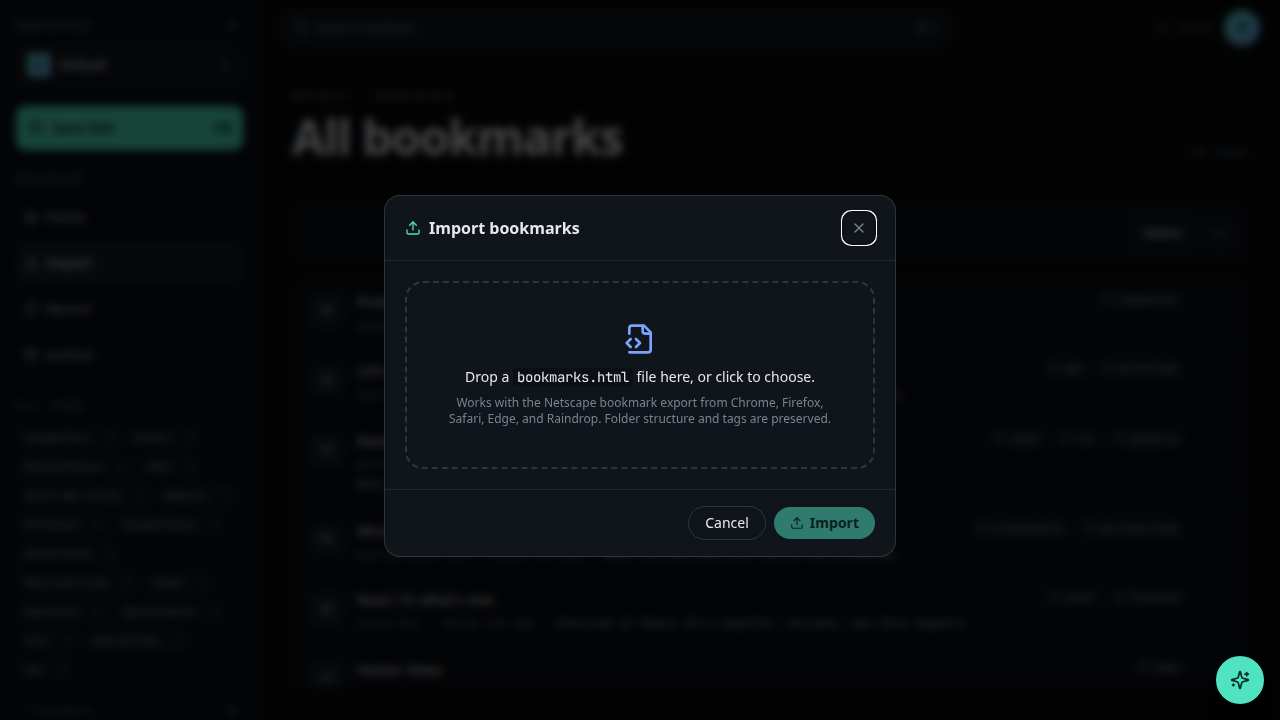
Upload the HTML file
Drop your exported file or click to browse. The folder structure is preserved — each browser folder becomes a not24get folder.
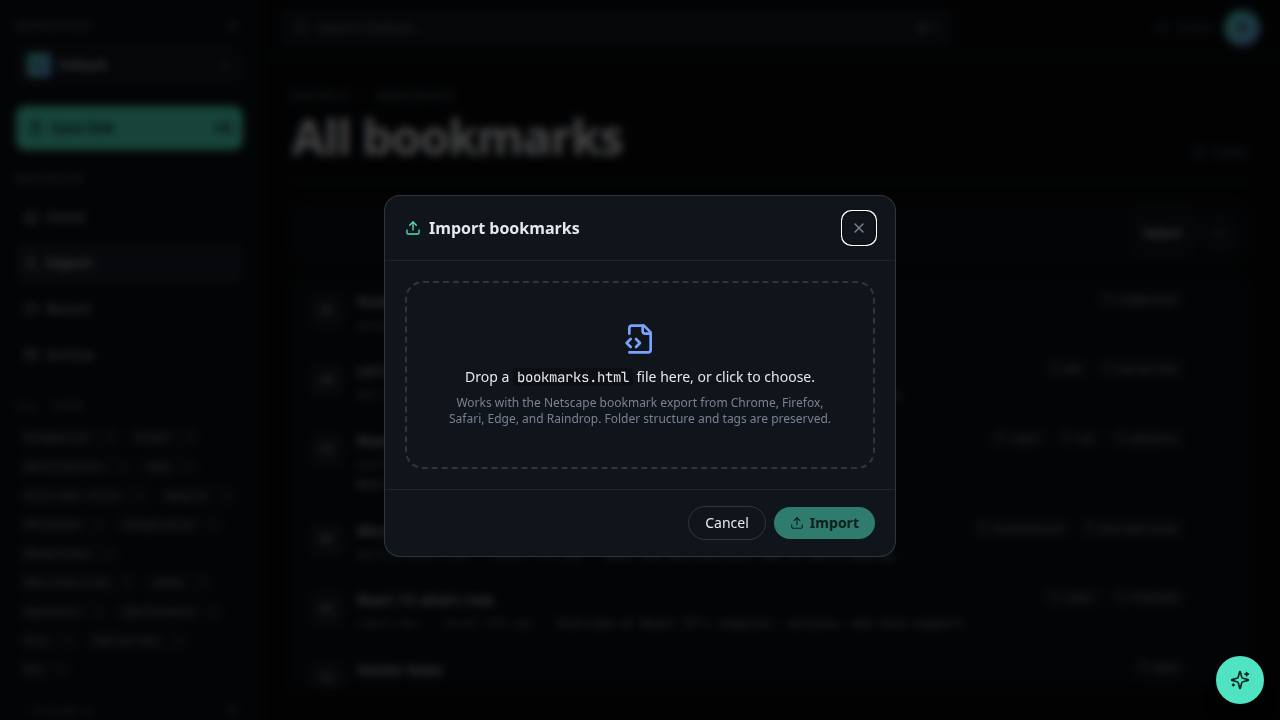
Review the preview
not24get shows a preview of folders and bookmarks. Deselect anything you do not want imported.
Confirm import
Click Import. Imports run in the background; you'll see a toast when finished.