Save a bookmark
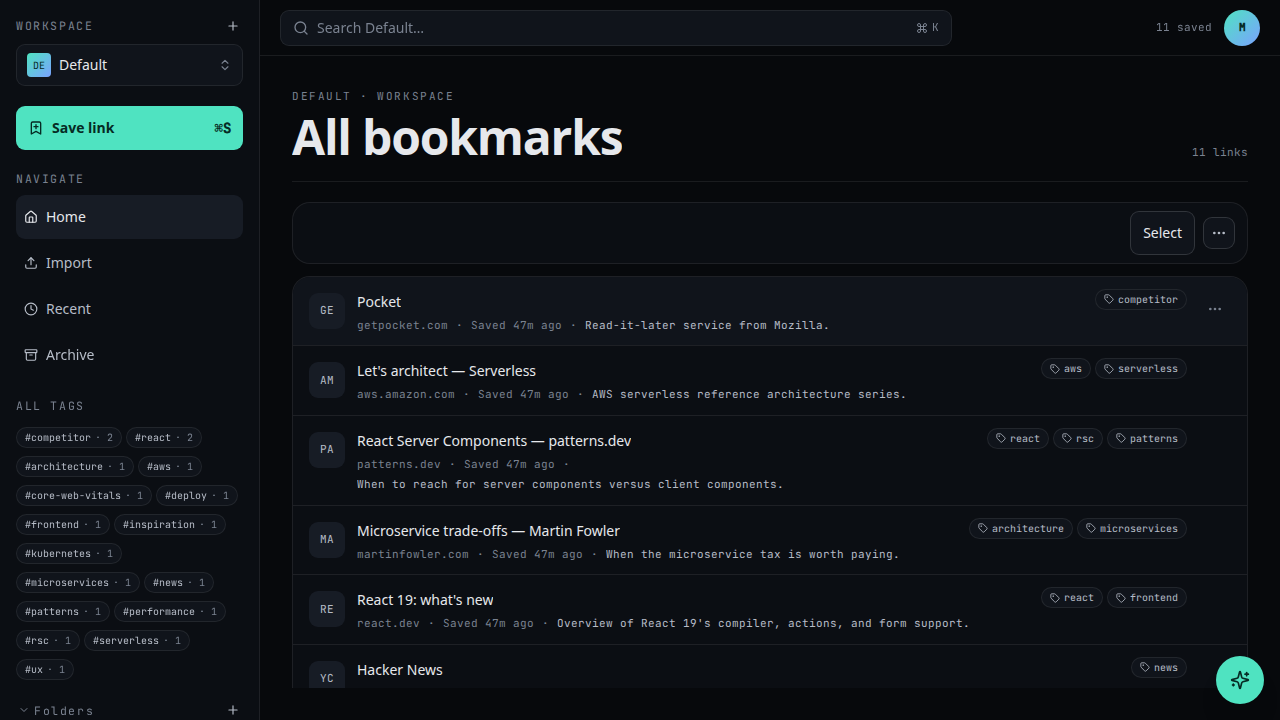
Save a link into the workspace you are currently viewing. The bookmark is created with the page's title; you can edit the title, add notes, choose a folder, and add tags before saving.
Steps
Open the New bookmark dialog
From the workspace shell, click New and choose Bookmark, or press N from anywhere in the app.
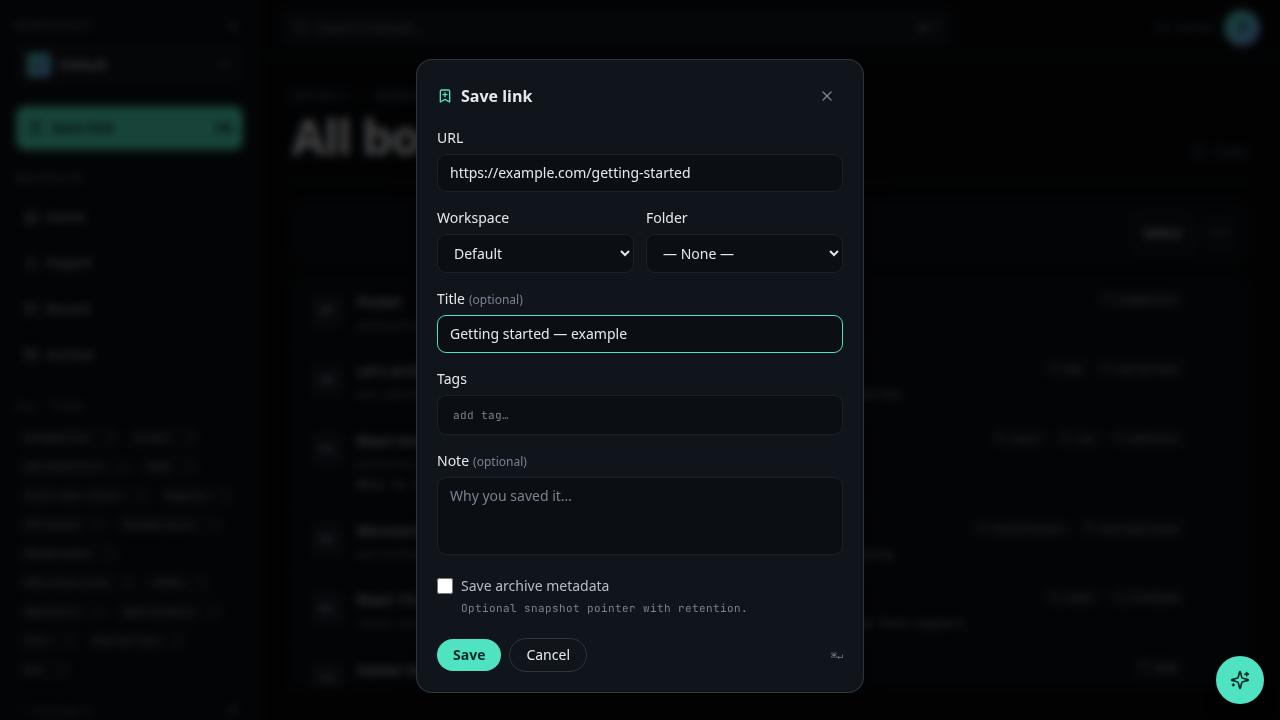
Paste or type the URL
Paste the URL into the URL field. The title is fetched automatically from the page. You can edit it.
(Optional) choose a folder
Pick an existing folder from the Folder dropdown, or leave it empty to save into the workspace root.
(Optional) add tags
Type tag names separated by commas. New tags are created on the fly.
Save
Press Cmd+Enter or click Save.
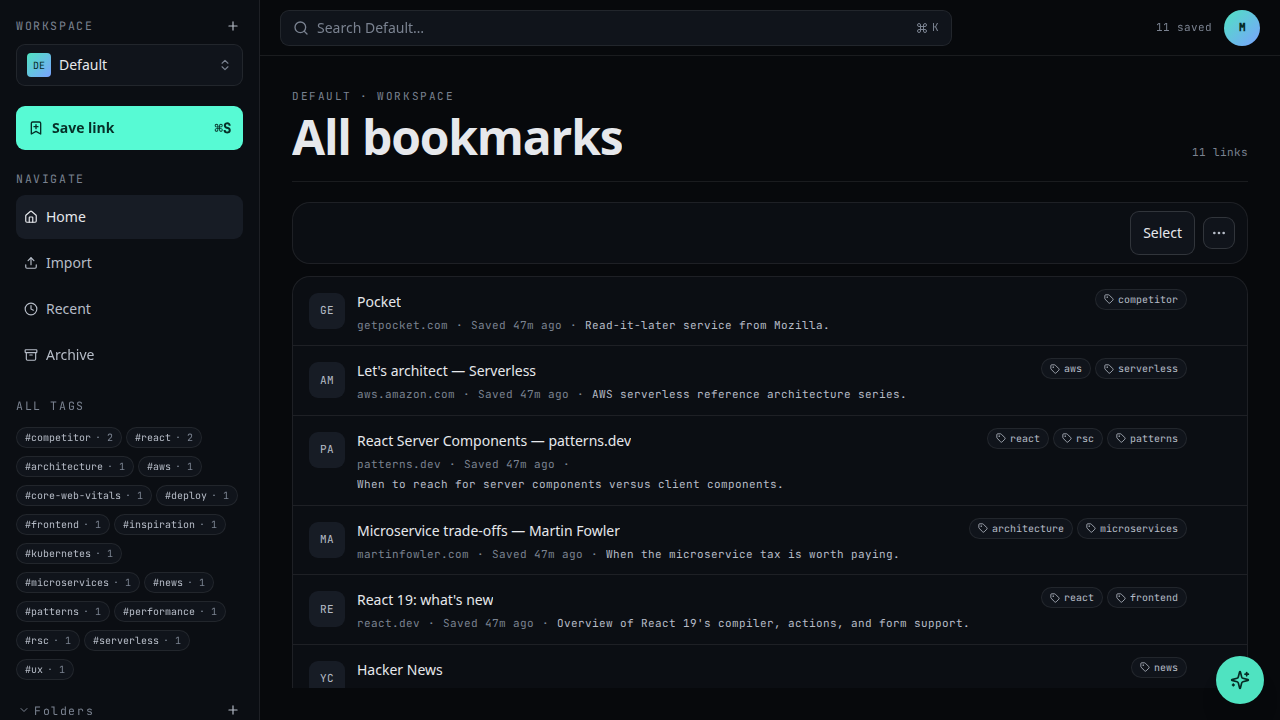
Saved bookmarks appear at the top of the list, sorted by recency.
What's next
- Import bookmarks from your browser
- Create a folder to organise saved links