Invite and manage members
Tenant admins use the Members page at /invite (from the bookmark hub, open Organization / Members). There you can send invitations, work with Pending invitations, see Current members, and Configure access for anyone who already belongs—including their organization role and which workspaces they can use.
Invitations send an email with a sign-up link. Until someone accepts, they appear under Pending invitations (not under Current members). After they accept, they appear under Current members with the role you chose (and with workspace memberships according to the invitation scope).
Send an invitation
Open Members (`/invite`)
From the workspace shell, go to the Members route (organization context). You need the admin tenant role; member and support users are redirected away from this page.
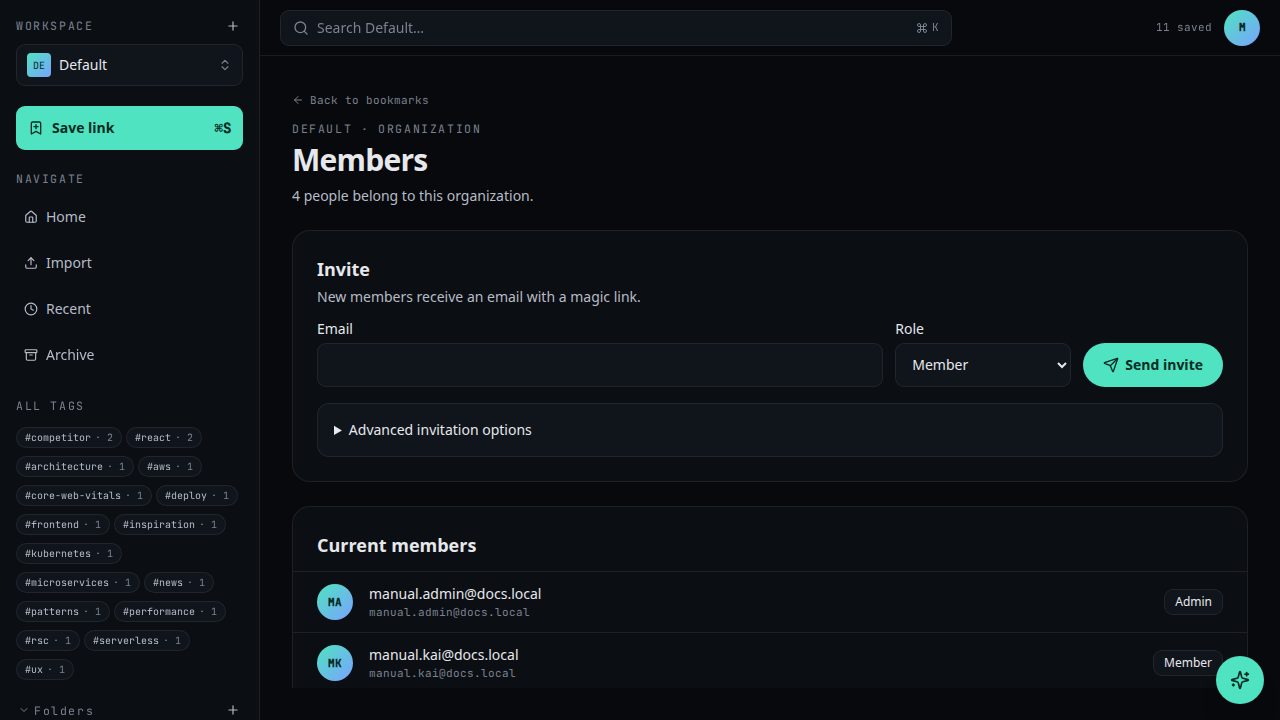
Enter email and tenant role
Enter the invitee’s email and choose Member, Admin, or Support. That value becomes their tenant role when memberships are created after they accept.
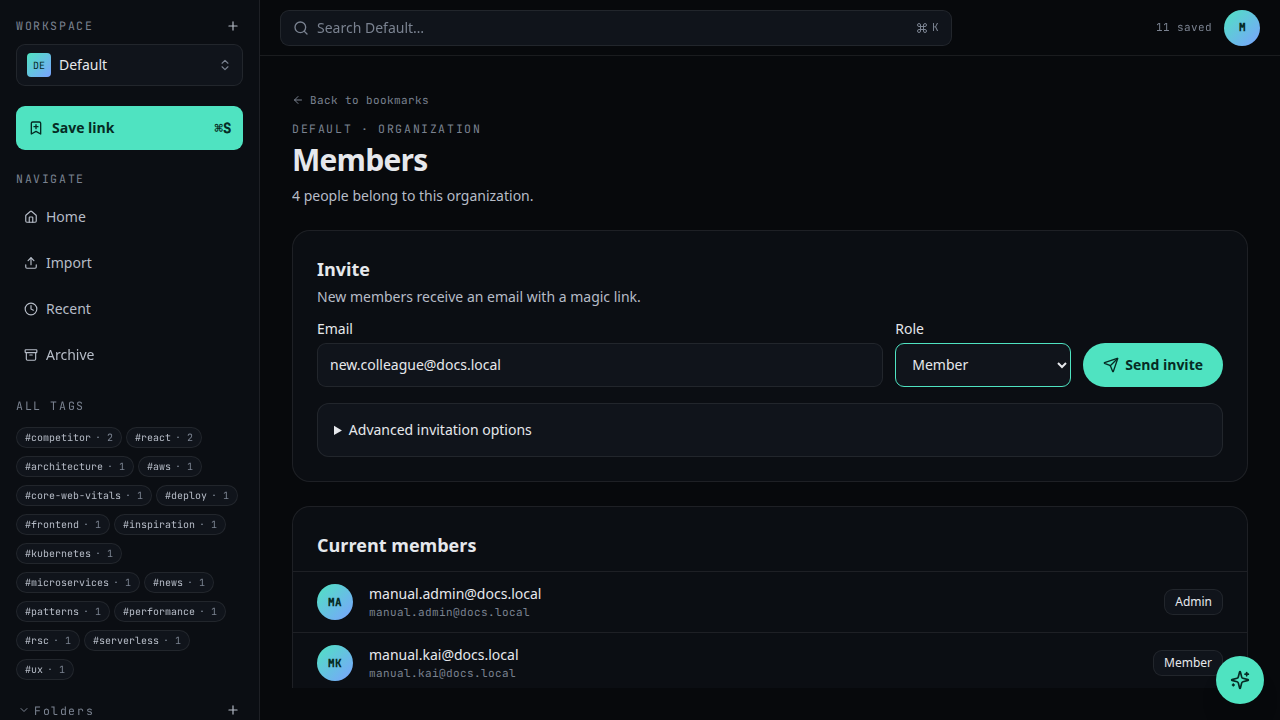
Optional: Advanced invitation options
Expand Advanced invitation options to set: - Invitation scope — Workspace only (single workspace you pick) or Organization (all workspaces) (every active workspace in the tenant when they accept). - RBAC role and Group — optional custom RBAC role and group from Roles and permissions; see Assign and change roles.
Send invite
Click Send invite. Use Pending invitations to Reinvite or Cancel if needed. You cannot send a new invite to an email that already belongs to the organization as an active member; use Configure access instead (below).
Current members and workspace access
Each row shows Workspace access: X of Y — how many active workspace memberships that person has versus how many workspaces exist in the organization. If someone was invited to a single workspace but you later add workspaces, X can be smaller than Y until you grant broader access (next section).
Configure access (existing members)
For someone who is already in Current members, tenant admins can open Configure access:
- Organization role — admin, member, or support applies to every workspace membership that person already has in this tenant. The API rejects removing the last administrator.
- Grant access to all workspaces — when shown, turn it on and save to create missing active memberships on every workspace, using the role you set (or their current effective role if you only expand access).
Saved changes apply on the server immediately. The member may need to refresh the app or wait for token refresh before their session shows the new tenant role everywhere.
What roles can do
| Role | Can do | Cannot do |
|---|---|---|
| member | Day-to-day usage: create workspaces, view org units, view roles and group/assignment lists | Invite or remove members, manage RBAC roles or assignments, manage billing |
| support | Read-only access for support staff: view org units, roles, and RBAC assignments | Modify any data, create workspaces, manage billing |
| admin | Everything in the tenant: invite and manage members, create and delete workspaces, manage RBAC roles, assignments, and groups, manage billing | — |
Custom RBAC roles built from individual permission keys can be attached on top of these tenant roles. See Understand roles and permissions for the full permission catalog and Assign and change roles for RBAC assignment flows.